Creating Teams
Create and organize teams to collaborate more effectively
Written By Delane Ly
Last updated 6 months ago
Step 1: Access the Team Management Tab
From your Abacor dashboard, navigate to Team Management at the top of the page. This tab allows you to manage team members, roles, and collaboration settings.
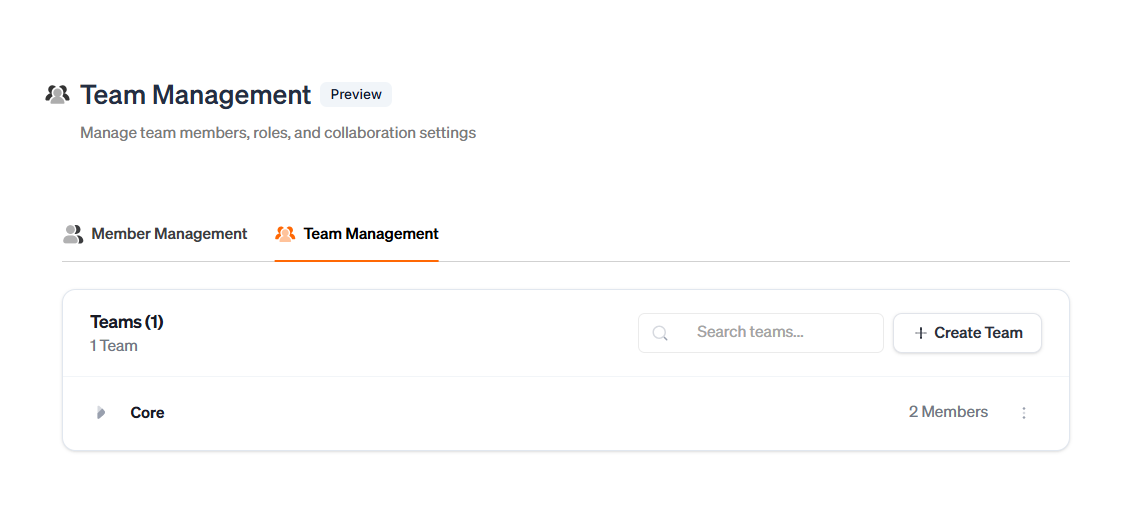
Step 2: Create a New Team
Click the Create Team button on the right-hand side.
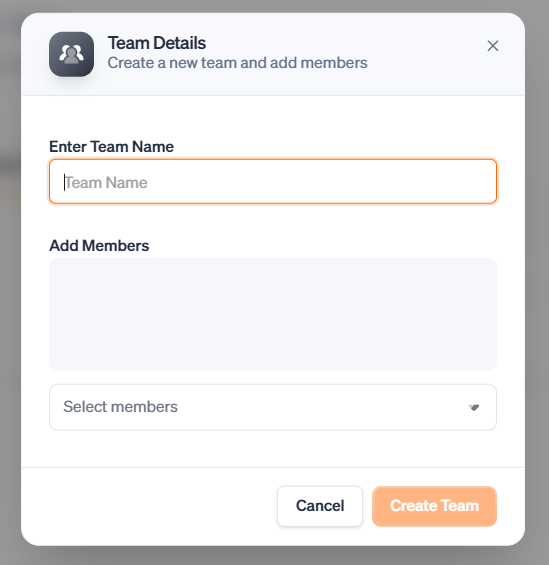
Step 3: Name Your Team
Enter a name for your new team. This will help you organize members and track collaboration within the platform.
Step 4: Add Team Members
Once the team is created, you can add members by entering their email addresses.
Step 5: Assign Seat Types
Choose the appropriate seat type for each member:
Admin: Full access to manage the team, settings, and seat assignments.
Member: Standard access to use Abacor features and join meetings.
Lite: Limited access for viewing content and participating minimally.
Step 6: Manage Seats and Roles
Suspend Seats: Temporarily suspend members on extended leave to free up licenses.
Reassign Seats: Change a member’s role or seat type at any time.
Remove Members: Remove access for members who no longer need it.
Troubleshooting
Cannot Add Members: Ensure you have enough available licenses. Suspend or remove seats if necessary.
Invitation Not Received: Ask members to check their spam folder. Resend invitations from the Team Management tab.
Member Cannot Access Account: Verify their email and seat assignment. Contact support if the issue persists.
Still having trouble?
Email us at [email protected] with the meeting date and title so we can help.
Was this helpful?
Still need help? Ask the team