Checking if Abacor is Working
If Abacor is working correctly, it will join your scheduled meetings and appear in the participant list. This ensures it can record, transcribe, and capture all key details from your discussion.
Written By Delane Ly
Last updated About 1 year ago
Method 1: Check Abacor Toggle
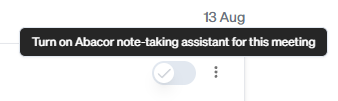
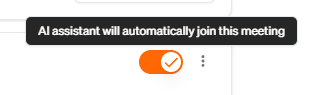
Navigate to your dashboard and confirm that your meeting is toggled on. If it’s not, switch it on to ensure Abacor joins as scheduled.
Method 2: Abacor Preferences
Navigate to your dashboard and confirm that your meeting is toggled on. If it’s not, switch it on to ensure Abacor joins as scheduled.
Step 1: Navigate to the bottom-left corner of your dashboard and click the gear icon to open Preferences.
Step 2: In Preferences, locate the settings for meeting attendance.
Step 3: Choose your preferred option for when Abacor should join meetings automatically.
Step 4: Save your changes to ensure your settings are applied.
Troubleshooting
Check your preferences: Navigate to the bottom-left gear icon, open Preferences, and confirm your meeting attendance setting is enabled.
Verify calendar integration: Ensure your Google Calendar or Microsoft Teams account is connected so Abacor can detect your meetings.
Meeting toggle: From your dashboard, make sure the specific meeting is toggled on.
Re-invite Abacor: If the above steps don’t work, manually invite Abacor to the meeting to confirm it can join.
Contact support: If issues persist, reach out to our support team for further assistance.
Still having trouble?
Email us at [email protected] with the meeting date and title so we can help.
Was this helpful?
Still need help? Ask the team