Creating an Account and Logging In
Written By Delane Ly
Last updated About 1 year ago
1. Create Your Account
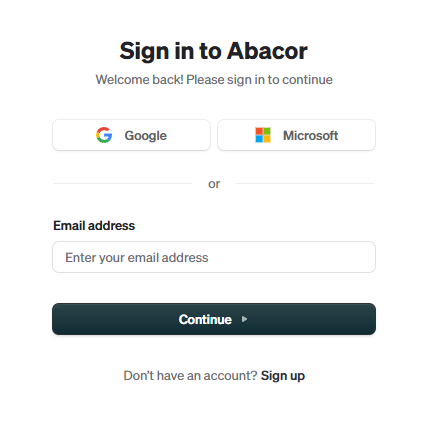
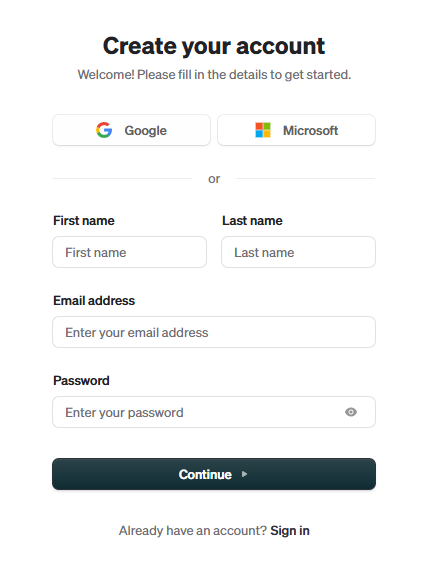
Visit www.abacor.com/app to sign up.
2. Verify Your Account
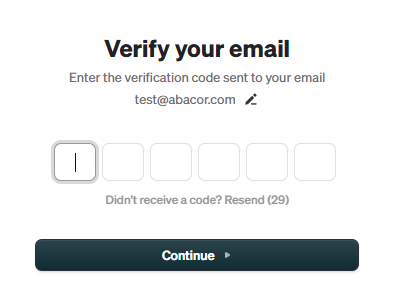
A verification code will be sent to your email. Enter the code to confirm and verify your email address.
3. Connect Your Calendar
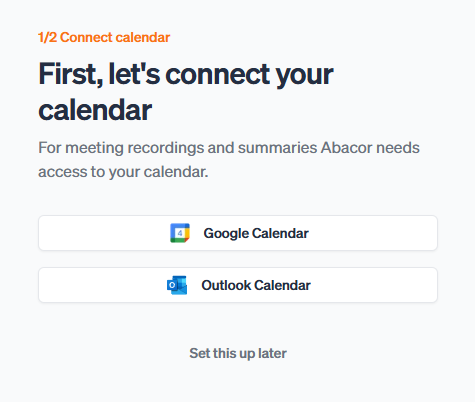
Sync your Google Calendar or Microsoft Outlook to automatically import upcoming meetings.
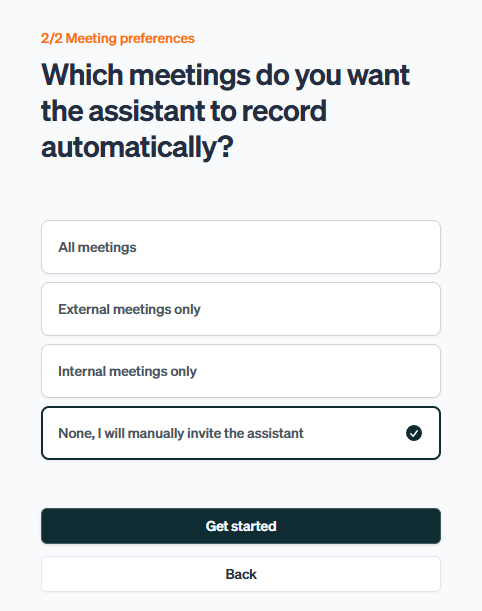
6. Select Your Meeting Preference
5. Start Using the Assistant
You're ready to use Abacor in your next meeting! The assistant will transcribe, summarize, and help you capture key points.
4. (Optional) Chat With Us
Have questions or need help with setup or feedback? Just click the chat bubble in the bottom-right corner to start a conversation.
Troubleshooting
Incorrect Email or Password: Double-check that you've entered the correct credentials. Ensure your Caps Lock key is off and that there are no typos.
Account Locked: If you've made too many unsuccessful login attempts, your account may be temporarily locked. Wait 30 minutes before trying again or contact support.
Email Not Verified: If you haven’t received the verification email, click the Resend Verification Email button on the login page.
Was this helpful?
Still need help? Ask the team