Sharing Your Meeting with Video
You can now choose to include the meeting video when sharing your notes and transcript. This gives recipients the option to watch the full conversation along with reading the key points.
Written By Delane Ly
Last updated 6 months ago
Step 1: Open the Meeting
Navigate to the meeting you'd like to share. In the top right corner, you'll see a Share button.
Step 2: Select "Share"
Click the Share button. Two tabs will appear: Internal Access and Link Sharing.
Step 3: Choose Your Sharing Method
Internal Access: Share the meeting with people inside your organization. Internal recipients automatically have access to the video recording, transcript, and insights tab.
Link Sharing: Share the meeting externally with read-only access. You'll first need to enable link sharing by toggling the setting on. Once enabled, you'll also have the option to include the video recording, simply toggle it on if you'd like external recipients to view the video.
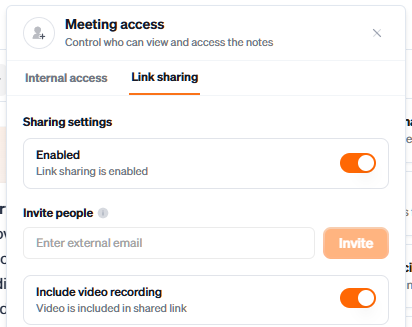
Step 4: Send the Share Link
Once your settings are configured, copy the share link or send it directly to your recipients.
Troubleshooting
“Include Video” toggle not visible:
Make sure the meeting was recorded with Abacor enabled. If there’s no video for the meeting, the toggle will not appear.Video not playing for recipients:
Ask recipients to refresh the share link page or try a different browser. Some older browsers may not support video playback.Sharing settings not saving:
After adjusting the toggle, confirm your changes are applied before sending the share link.
Still having trouble?
Email us at [email protected] with the meeting date and title so we can help.
Was this helpful?
Still need help? Ask the team