Forgot Password - Resetting Your Password
Forgot your password? Follow these quick and easy steps to get you back on track.
Written By Delane Ly
Last updated About 1 year ago
Step 1: Go to the Abacor Login Page
Open your web browser and navigate to Abacor’s login page.
On the login page, enter the email address associated with your Abacor account.
Step 2: Click "Forgot Password"
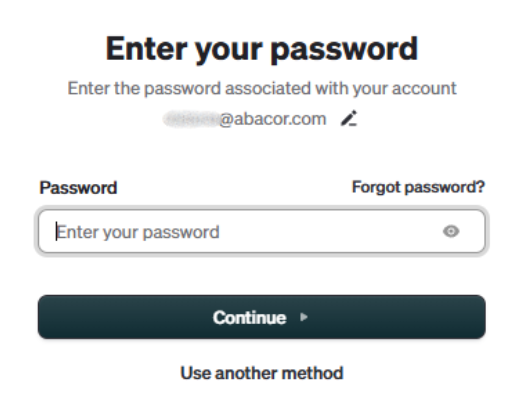
After entering your email, you will be directed to a page asking for your password.
Click on the "Forgot Password?" link located under the password field.
Step 3: Reset Your Password
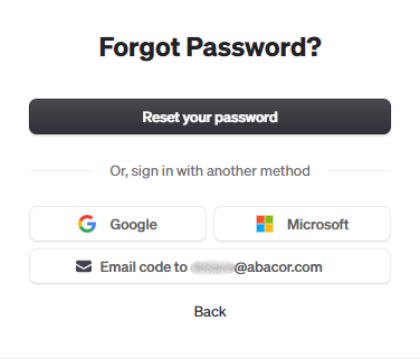
Click the "Reset your password" button or sign in a different method.
Step 4: Check Your Email for the Verification Code
Go to your email inbox and look for a message from Abacor with the subject "Password Reset Request".
Open the email and find the verification code included in the message.
Step 5: Enter the Verification Code
Return to the Forgot Password page and enter the verification code from your email in the appropriate field.
Click Verify to continue.
Step 6: Reset Your Password
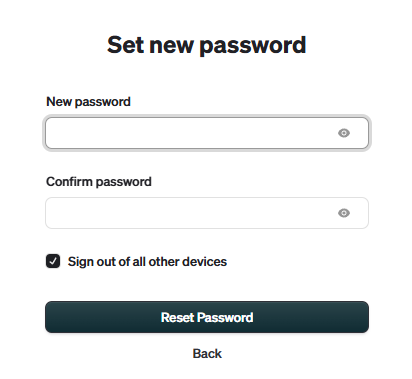
After verifying the code, you will be prompted to enter a new password.
Choose a strong new password and enter it in both the New Password and Confirm Password fields.
Click Submit to finalize the password reset.
Step 7: Log in with Your New Password
Once your password has been successfully reset, go back to the login page.
Enter your email address and new password to log in and access your account.
Troubleshooting
No Reset Email: If you don't receive the email, check your spam or junk folder. If it’s still not there, click Resend Reset Link on the Forgot Password page.
Expired Code: If the verification code expires, you can request a new one by repeating the reset process.
Incorrect Email: Make sure you’re entering the correct email address associated with your Abacor account. If you still can't access your account, contact support for assistance.
Still having trouble?
Email us at [email protected] with the meeting date and title so we can help.
Was this helpful?
Still need help? Ask the team