Setting Up Your Service Catalog
Build the Service List That Powers Your Revenue Assistant
Written By Delane Ly
Last updated About 1 month ago
Your service catalog is the list of services your firm offers, along with their pricing. Revenue Assistant uses this catalog to recommend services, build proposals, and identify revenue opportunities, so setting it up is the first step to getting accurate results.
Who can do what: Only admins can manage the service catalog — adding, editing, importing, and removing services. Members can view the catalog but cannot make changes to it.
Step 1: Open Your Settings
Log in to your Abacor account and go to Settings from the dashboard.
Step 2: Go to Service Catalog
In Settings, select Service Catalog.
Step 3: Add Your Services
You have two options for building your catalog.
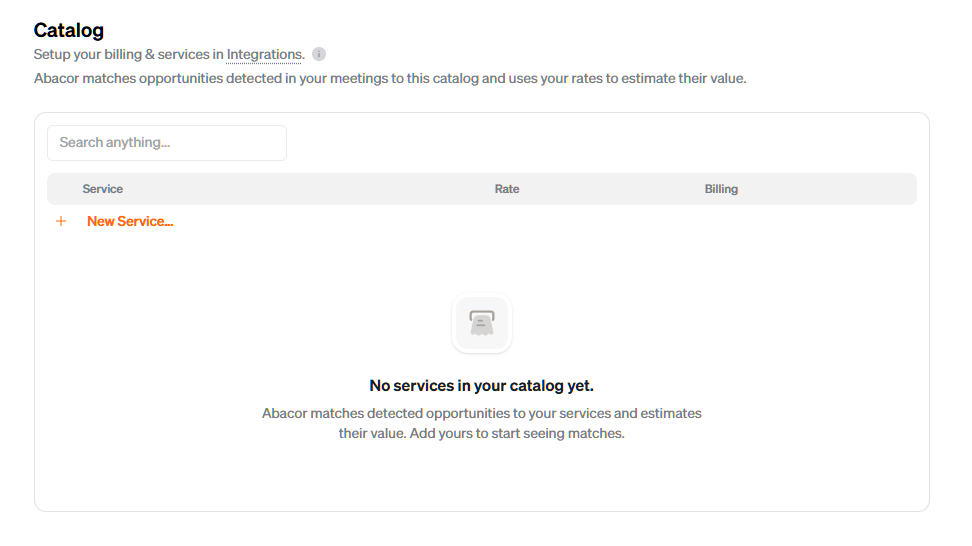
Option A: Enter Services Manually
Click Add Service and enter the details for each service your firm offers, including the service name, description, and price.
Repeat for each service you want available to Revenue Assistant.
Option B: Import from Anchor or Ignition
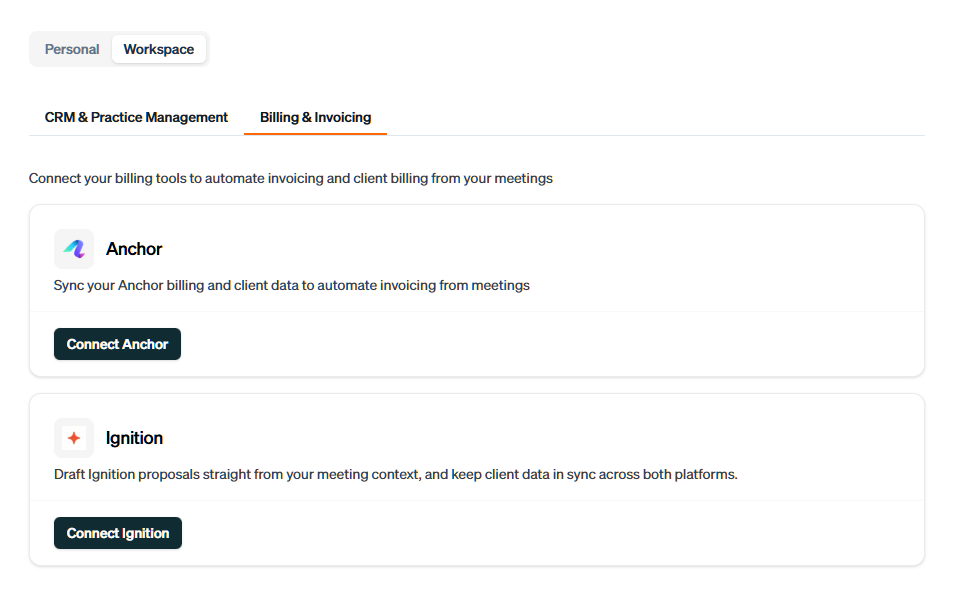
If you already maintain a service catalog in Anchor or Ignition, you can import it instead of entering services by hand.
Select Anchor or Ignition from the list of available sources.
Follow the on-screen prompts to connect your account.
Once connected, your services will be imported into Abacor.
Note: Prices on imported services cannot be edited in Abacor. To change the price of a service that came from Anchor or Ignition, update it in that billing service and the change will carry over to your catalog.
Step 4: Review Your Catalog
After adding or importing, review your service list to confirm everything came through correctly.
Services you entered manually can be edited or removed at any time from the Service Catalog page. For imported services, pricing is managed in Anchor or Ignition rather than in Abacor.
Troubleshooting
Service Catalog Not Visible in Settings Confirm you have admin permissions. Only admins can manage the service catalog. If you are not an admin, contact your Abacor admin to make the changes for you.
Anchor or Ignition Won't Connect Confirm your login credentials for that system are correct. Try logging out and back in if the connection fails.
Services Not Appearing After Import Refresh the Service Catalog page. If services are still missing, repeat the import to make sure it completed successfully.
Can't Edit the Price on a Service The service was most likely imported from Anchor or Ignition. Prices on imported services are managed in your billing service, so make the change there instead.
Service Not Saving Make sure you have entered all required fields before saving.
Revenue Assistant Isn't Recommending a Service Check that the service exists in your catalog and that its details are complete. Revenue Assistant can only recommend services it can see.
Still having trouble?
Email us at [email protected] and we can help.