Using "Ask Abacor" During & After a Meeting
Abacor AI helps you review and understand your meeting by answering questions based on the transcript. After finishing your meeting, you’ll be able to chat directly with the AI from the meeting page.
Written By Aissiou Ikram
Last updated 2 months ago
Step 1: Finish Your Meeting
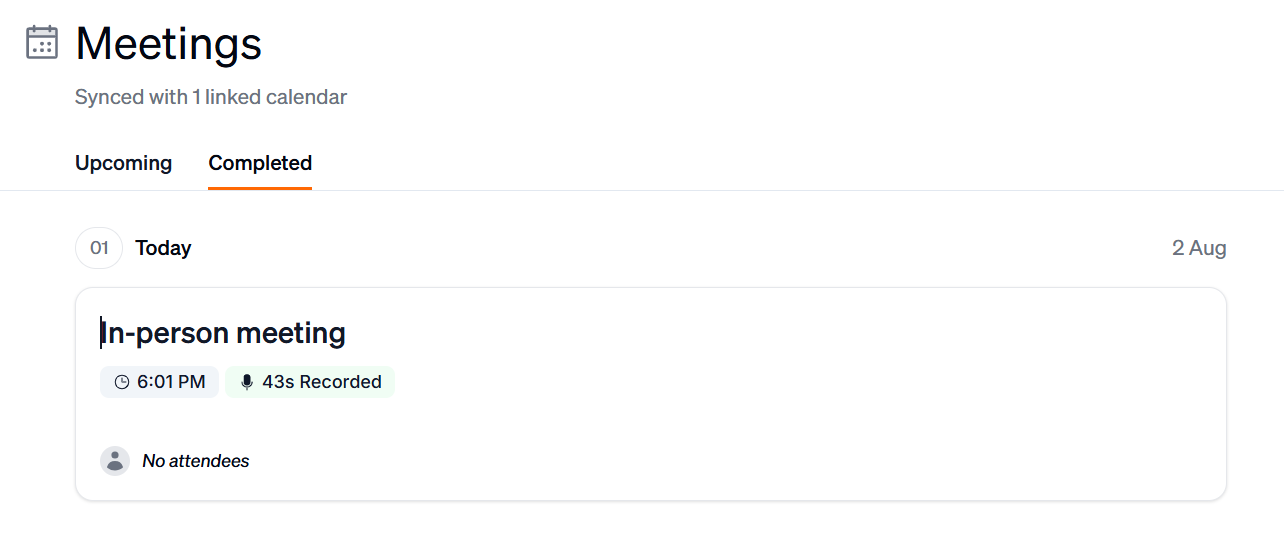
Once your meeting is over, whether it was online or in-person, go to the meeting page.
Click on the Completed tab, then select the meeting you want to chat with Abacor AI about.
Step 2: Interact with Abacor
Want to dig into a meeting? Type your question in the chat box. For example:
• "What financial topics came up?"
• "Were any payment deadlines or invoice issues mentioned?"
• "Summarize the client's main concerns."
• "What budget changes were proposed?"
• "List all action items for the accounting team."
Abacor can also draft documents, build slide decks, and fill out forms based on what was discussed.

Troubleshooting
Ask Abacor button not visible:
Make sure the meeting is marked as completed and the transcript is available.
Try refreshing the page.
Side panel not opening:
Click the button again or reload the page.
Check your internet connection or browser compatibility.
AI responses are unclear:
Responses rely on the transcript, so low audio quality or missing details may affect the results.
Still having trouble?
Email us at [email protected] with the meeting date and title so we can help.
Was this helpful?
Still need help? Ask the team