Invite Abacor to Ad-hoc Meetings
The Invite Abacor to Ad-hoc Meetings feature is designed for impromptu or unscheduled meetings. It lets you quickly bring Abacor into any live call so it can start recording, transcribing, and capturing notes without needing a calendar event.
Written By Delane Ly
Last updated 6 months ago
Step 1: Invite Abacor
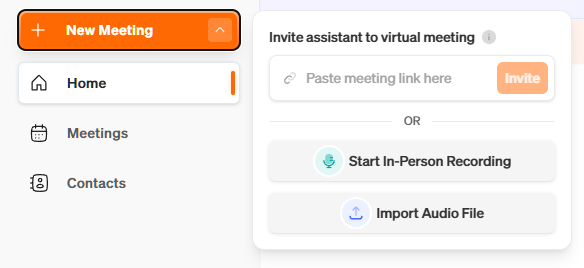
From the Home Page, click the + Invite to Link button.
Step 2: FIll out information
In the pop-up window, enter the required Meeting URL (e.g., a Google Meet or Zoom link).
Step 3: Send Abacor
Click Send Assistant.
Troubleshooting
Invalid or Unsupported Link:
Make sure you’ve entered a valid meeting URL (e.g., Google Meet, Zoom, or Microsoft Teams). The URL should be in the correct format (e.g., https://meet.google.com/abc-def-ghi).
Button Greyed Out: The Send Assistant button will only become active once a valid meeting link is entered. Double-check that the URL starts with https://.
Assistant Didn’t Join the Meeting:
Confirm the meeting has started and participants are present.
Some platforms (e.g., Zoom) may require waiting room approval—ensure Abacor is allowed in.
If it’s a recurring link, try refreshing or using a newly generated meeting link.
No Transcription Appearing: Ensure the assistant successfully joined. If the meeting is muted or has no audio, transcription may not be generated.
Still having trouble?
Email us at [email protected] with the meeting date and title so we can help.
Was this helpful?
Still need help? Ask the team