Creating Action Items
Written By Delane Ly
Last updated About 1 year ago
Step 1: Open the Meeting
Go to the Completed Meetings tab and select the meeting where you'd like to add an action item.
Step 2: Add an Action Item
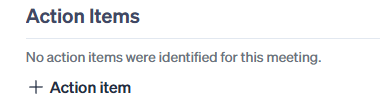
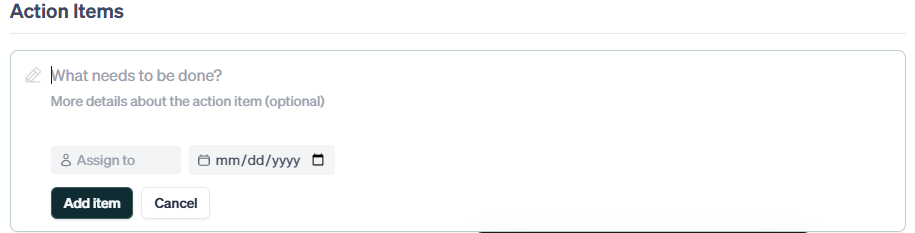
Scroll to the bottom of the meeting summary and click + Action Item. Fill in the details and save to add it to the meeting.
Troubleshooting
Action Item Button Not Visible:
Make sure you’ve selected a meeting from the Completed Meetings tab. Action items can only be added to completed meetings.Changes Not Saving:
Ensure your internet connection is stable. Try refreshing the page and re-entering the action item.Missing Action Items:
Confirm that the action item was saved successfully. You should see it appear immediately after submitting.
Still having trouble?
Email us at [email protected] with the meeting date and title so we can help.
Was this helpful?
Still need help? Ask the team