Connect Calendar and Import Event Meetings
You can connect both Google Calendar and Microsoft Teams to sync meetings, manage your schedule, and make collaboration more seamless. This integration ensures that your events, availability, and meeting links stay consistent across platforms.
Written By Aissiou Ikram
Last updated About 1 year ago
Step 1: Open the Integrations Page
In your interface, navigate to the Settings section (located at the bottom left side).
Click on the Integrations tab from the sidebar.
Here, you’ll see options for calendar and meeting platform integrations.
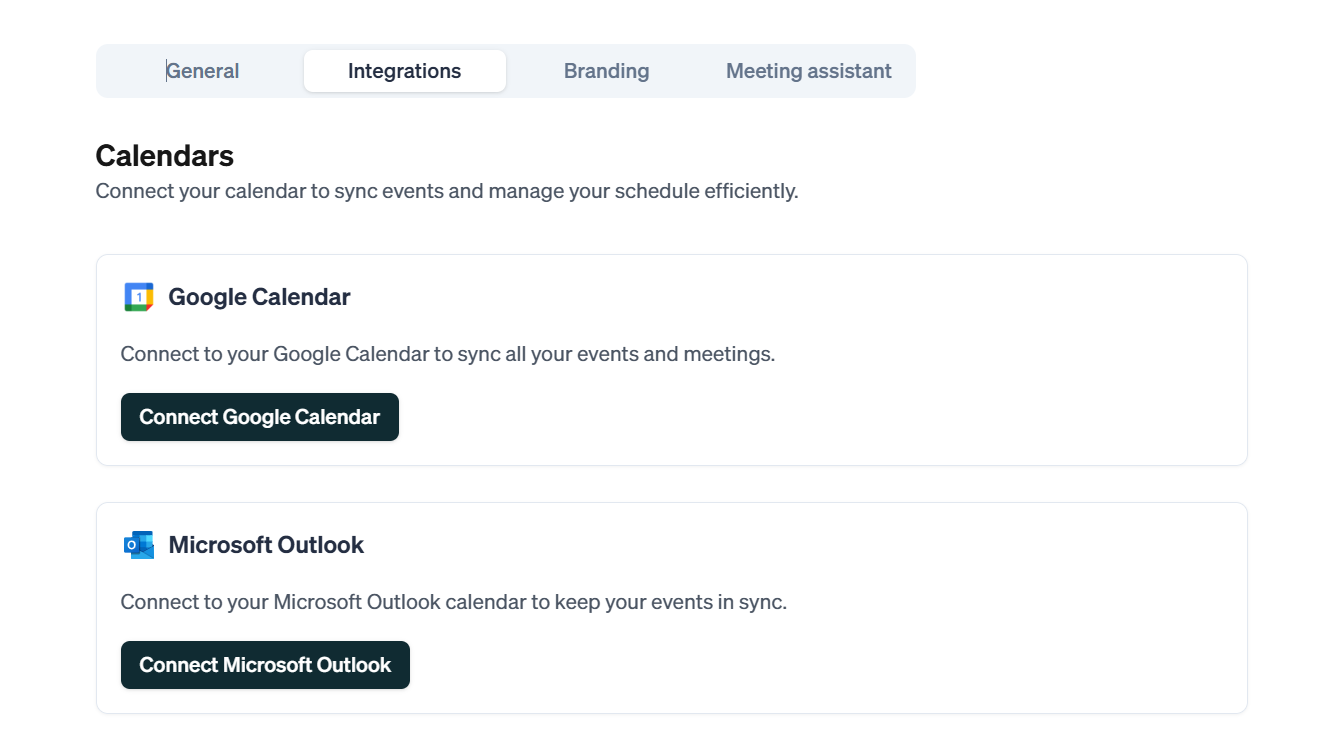
Step 2: Connect Google Calendar
Click the Connect Google Calendar button, and you’ll be prompted to sign in with your Google account. Once logged in, grant the necessary permissions to sync your calendar.
Step 3: Connect Microsoft Teams
Under the same Integrations tab, click Connect Microsoft Teams.
Sign in with your Microsoft account. If prompted, authorize permissions and select the Teams workspace you'd like to link.
Once connected, Teams meetings will appear automatically in your synced calendar.
Step 4: Check Sync
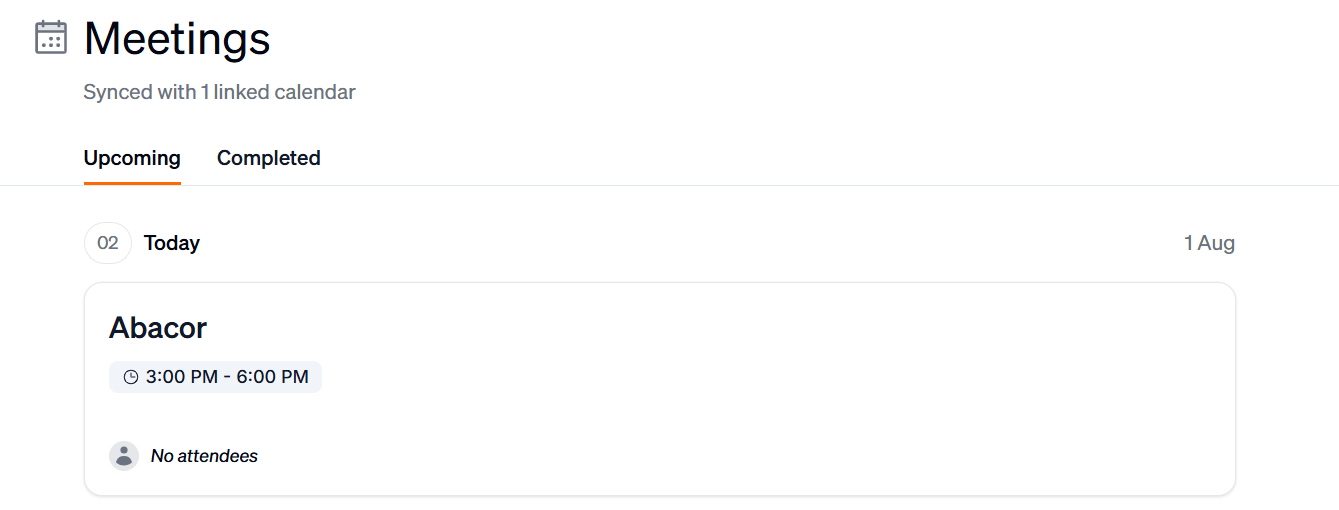
After both accounts are connected, return to your dashboard. You should see synced events from both Google Calendar and Teams. New meetings added in either platform will now reflect in the other.
Troubleshooting
Google Calendar Not Syncing:
Make sure the correct Google account is selected.
Check if permissions were granted during login.
Teams Integration Fails:
You may need admin approval from your organization.
Try logging in again and verify access rights.
Recurring Events Not Appearing:
Refresh your dashboard.
Make sure recurring meetings were created with proper repeat settings.
Was this helpful?
Still need help? Ask the team