Adding/Removing Users
Easily Add, Assign, and Manage Seats for Your Team
Written By Delane Ly
Last updated 6 months ago
Step 1: Access Your Team Settings
Log in to your Abacor account and go to the Team Management section from the dashboard. Only admins can manage team members and seat assignments.
Step 2: Add Team Members
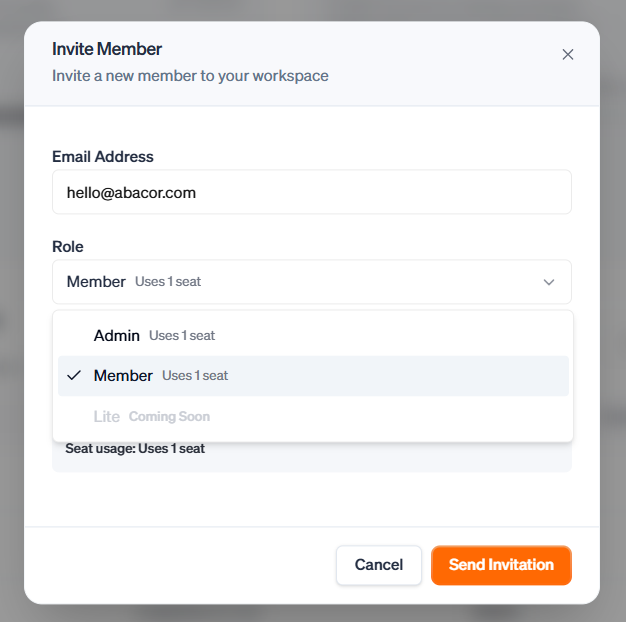
Click Add Member and enter the team member’s name and email.

Step 3: Select a Seat Type
When adding a member, choose from the following seat types:
Admin: Full access to manage the team, settings, and seat assignments.
Member: Standard access to use Abacor features and join meetings.
Lite: Limited access for viewing content and participating minimally.
The member will receive an invitation email based on their assigned seat.
Step 4: Manage Seats
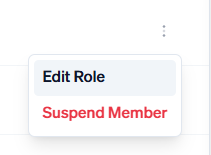
Suspend Seats: Temporarily suspend seats for team members on extended leave, freeing up licenses for others.
Reassign Seats: Change a member’s seat type at any time.
Step 5: Remove Members
If a team member no longer needs access, click Remove Member to revoke their license.
Troubleshooting
Invitation Not Received: Ask the member to check their spam folder. You can resend the invitation from the Team Management page.
Seat Limit Reached: If you cannot add a new member, check if any seats are suspended or contact support to purchase additional licenses.
Member Cannot Access Account: Ensure their email is verified and their seat is active.
Still having trouble?
Email us at [email protected] with the meeting date and title so we can help.
Was this helpful?
Still need help? Ask the team