Pushing Notes to Karbon
After your meeting, you can instantly push the recording and generated notes from Abacor into Karbon. This makes it simple to share insights with your team, keep client timelines up to date, and centralize key discussions directly within your firm’s workflow.
Written By Delane Ly
Last updated 2 months ago
Step 1: Go to the Meeting Note
Open the meeting note in Abacor that you want to push to Karbon.
Step 2: Locate the Post-Meeting Action Bar
At the top of the note, find the post-meeting action bar. You’ll see a Sync option.
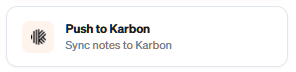
Step 3: Select “Push to Karbon”
Click on Push to Karbon to open the sync window.
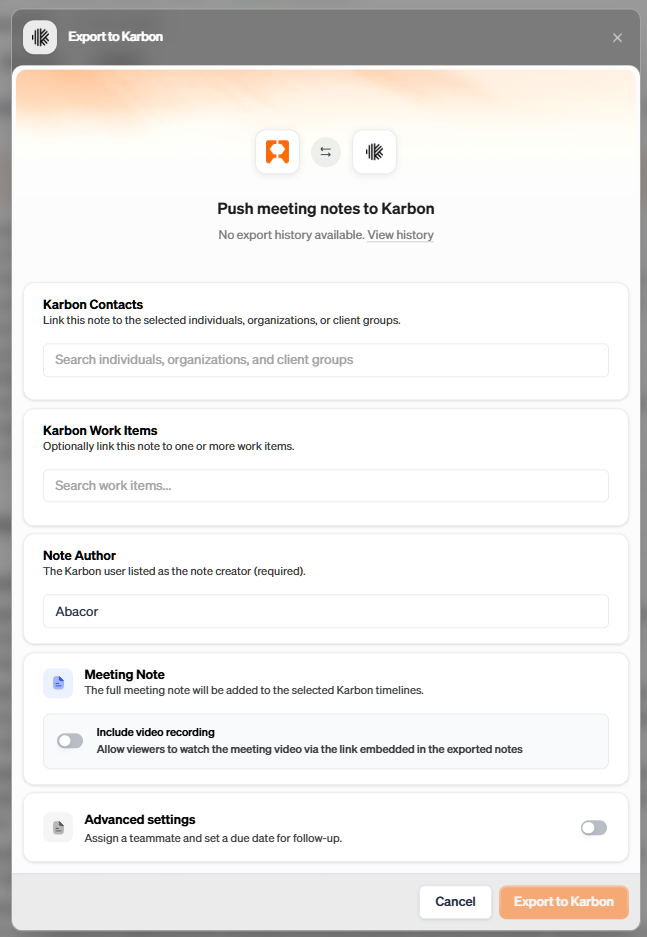
Step 4: Choose What to Send and Where
Fill out the details of what you’d like to send. You can sync notes to:
Individuals Timeline
Organizations Timeline
Client Groups Timeline
Work Item Timeline
FAQ
How often does Abacor sync my information with Karbon?
Abacor automatically syncs with Karbon every hour to keep your notes, transcripts, and contacts up to date.
Can I see when my information was last synced?
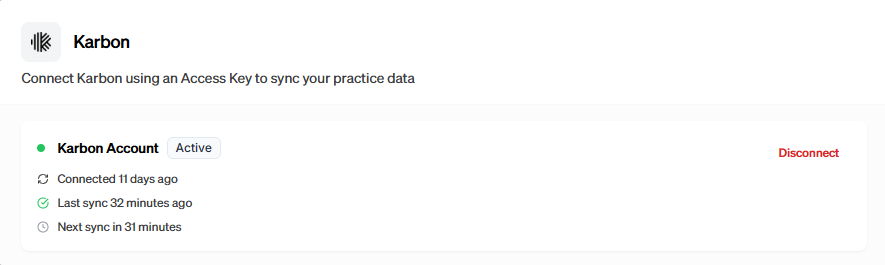
Yes. To view the most recent sync time:
Navigate to Settings > Integrations in Abacor.
Select Karbon.
You’ll see details about the last successful sync and the next scheduled sync.
What if I need information synced immediately?
While automatic sync runs every hour, you can manually trigger a sync by selecting Sync Now in the Karbon integration panel.
What happens if a sync fails?
If a sync cannot complete, you’ll see an error message in the Karbon integration settings. From there, you can retry the sync or re-authenticate your Karbon connection.
Does Abacor sync both notes and contacts?
Yes. Abacor syncs your AI-generated notes, transcripts, and recordings to client timelines in Karbon, as well as contacts and client groups to keep your client hub consistent.
Troubleshooting
Sync Option Not Visible
Make sure you are in a meeting note. The sync option only appears in the post-meeting action bar. Refresh your page if it doesn’t display.Unable to Log In to Karbon
Confirm you are using the correct Karbon account credentials. If you’re logged into the wrong account, log out and reconnect.Note Not Appearing in Karbon
Double-check that you selected the right destination (individual, org, client group, or work item timeline). If the note still doesn’t show, try syncing again.
Still having trouble?
Email us at [email protected] with the meeting date and title so we can help.
Was this helpful?
Still need help? Ask the team