Importing Your Emails
Connecting your inbox imports your emails into Abacor so you can prompt and query across them, alongside the rest of your Abacor data. This connection is for importing only.
Written By Delane Ly
Last updated About 3 hours ago
Step 1: Go to Integrations
From your Abacor dashboard, open Integrations.
Step 2: Find the Email Section
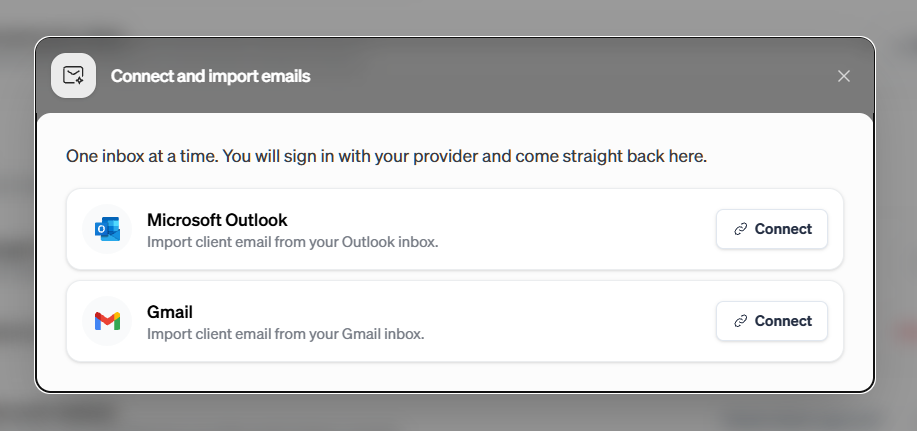
Under Personal, find the Email section. You'll see the Connect your inbox card, which lets you link your Gmail or Outlook account.

Step 3: Connect Your Inbox
Click Connect and follow the on-screen prompts to sign in to your Gmail or Outlook account and grant access. Once connected, your emails will begin importing into Abacor.
Step 4: Turn On Auto-sync (Optional)
If you want your latest emails to keep coming into Abacor, switch on the Auto-sync toggle. With Auto-sync on, new emails from your selected contacts are imported automatically. If you leave it off, only the emails already imported will be available.
What Importing Does (and Doesn't Do)
Imported emails can be used in Abacor prompts and queries, so you can ask questions across your emails and other Abacor data.
Connecting your inbox only imports emails into Abacor.
Troubleshooting
Connect Button Not Working
Make sure you're signing in with the correct Gmail or Outlook account and that pop-ups aren't blocked in your browser. Try logging out and back in to Abacor, then connect again.
New Emails Not Appearing
Check that Auto-sync is turned on and that the sender is one of your selected contacts.
Emails Not Showing Up After Connecting
Refresh the page. If emails are still missing, disconnect and reconnect your inbox.
Still having trouble?
Email us at [email protected] and include a description of the issue so we can help.