Time Zone Settings
Written By Delane Ly
Last updated About 1 year ago
Step 1: Go to the bottom-left corner of the screen and click the ⚙️ Settings (gear icon).
Step 2: In the Preferences panel, open the General tab (first tab).
Step 3: Scroll down to the Time Zone section.
Step 4: Select your correct time zone from the dropdown menu.
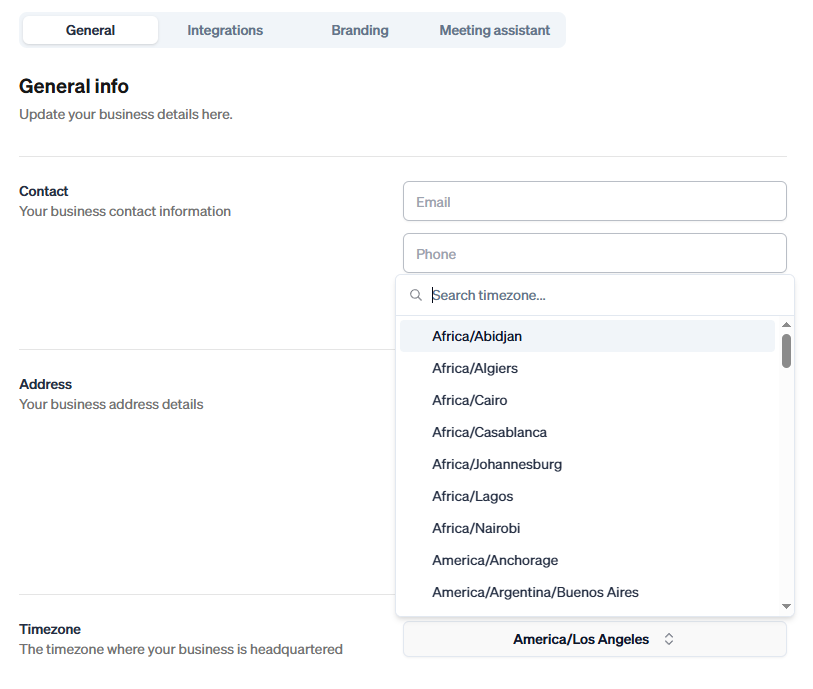
Step 5: Your settings will be automatically saved.
Troubleshooting
Check your settings: Go to the bottom-left corner of the screen and click the ⚙️ Settings (gear icon).
Open Preferences: In the Preferences panel, click the General tab.
Update your time zone: Scroll to the Time Zone section and select the correct time zone from the dropdown menu.
Confirm it’s saved: Changes save automatically, but double-check the displayed time zone to ensure it’s correct.
Refresh your dashboard: If meeting times still appear incorrect, refresh your dashboard or log out and log back in.
Still having trouble?
Email us at [email protected] with the meeting date and title so we can help.
Was this helpful?
Still need help? Ask the team