Deleting Your Account
If you no longer wish to use the platform, you can delete your account at any time through your account settings. This action is permanent and will remove all your data from our system.
Written By Aissiou Ikram
Last updated About 1 year ago
Step 1: Go to Your Profile
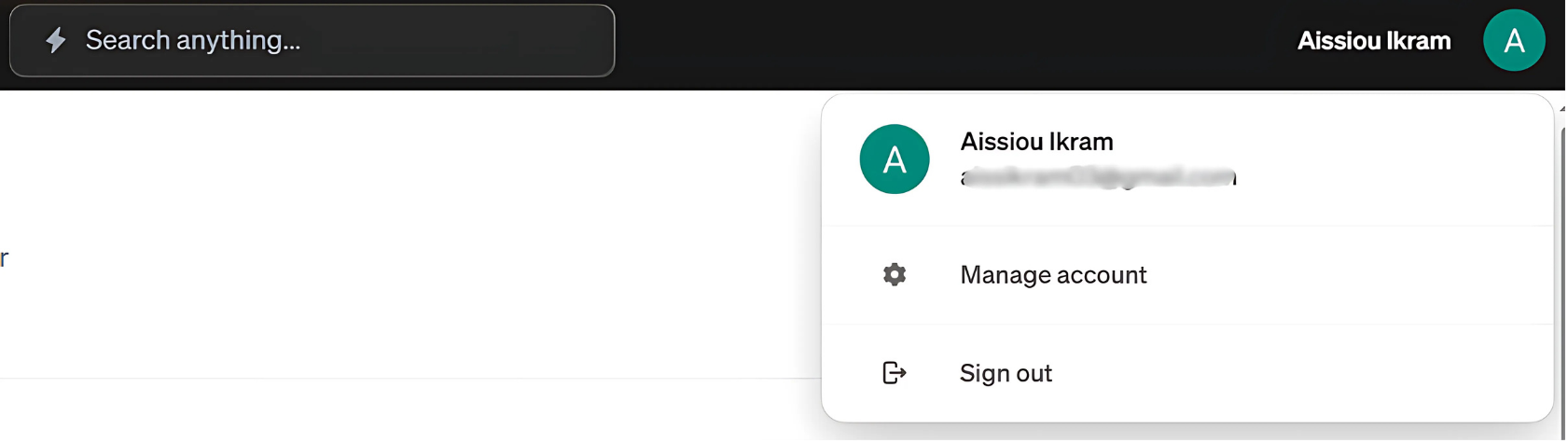
Click on your profile icon in the top-right corner of the screen, then from the dropdown menu, select Manage Account.
Step 2: Access Security Settings
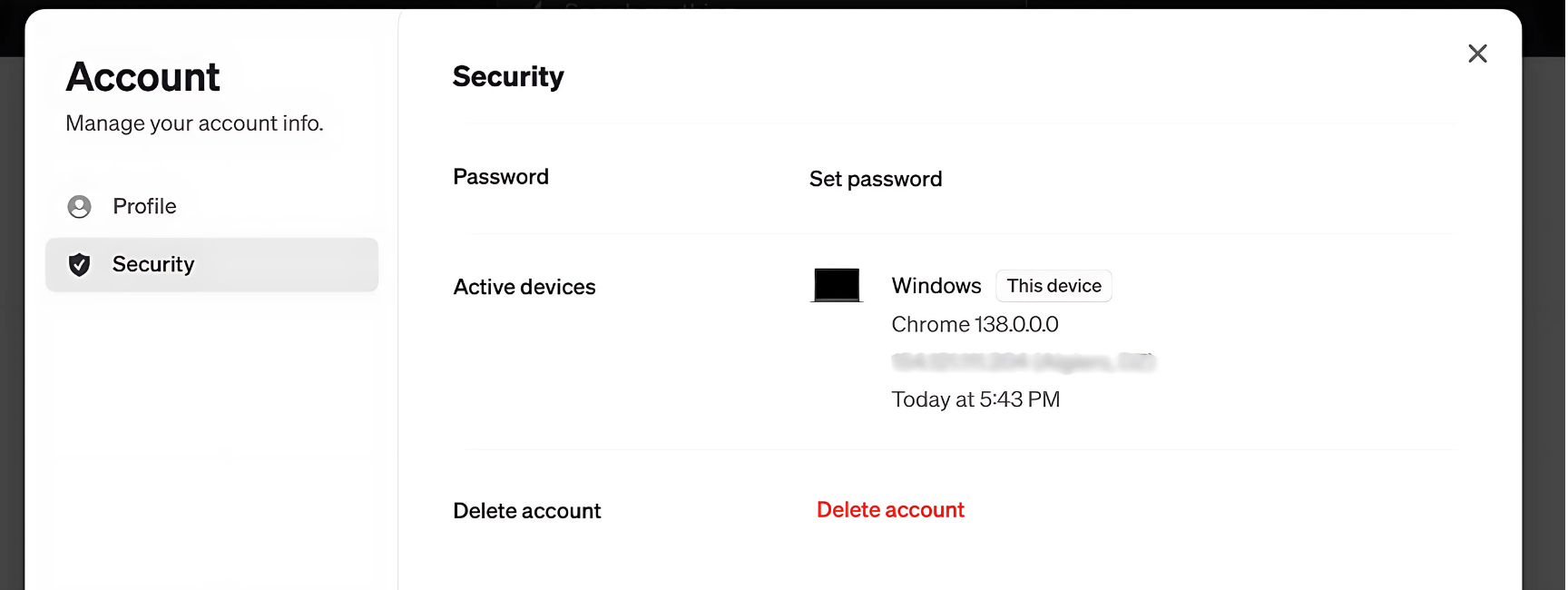
Inside the Manage Account page, click on the Security tab. This section contains options related to your login, active devices, and account safety.
Step 3: Delete Your Account
At the bottom of the Security panel, you’ll see the Delete account option in red.
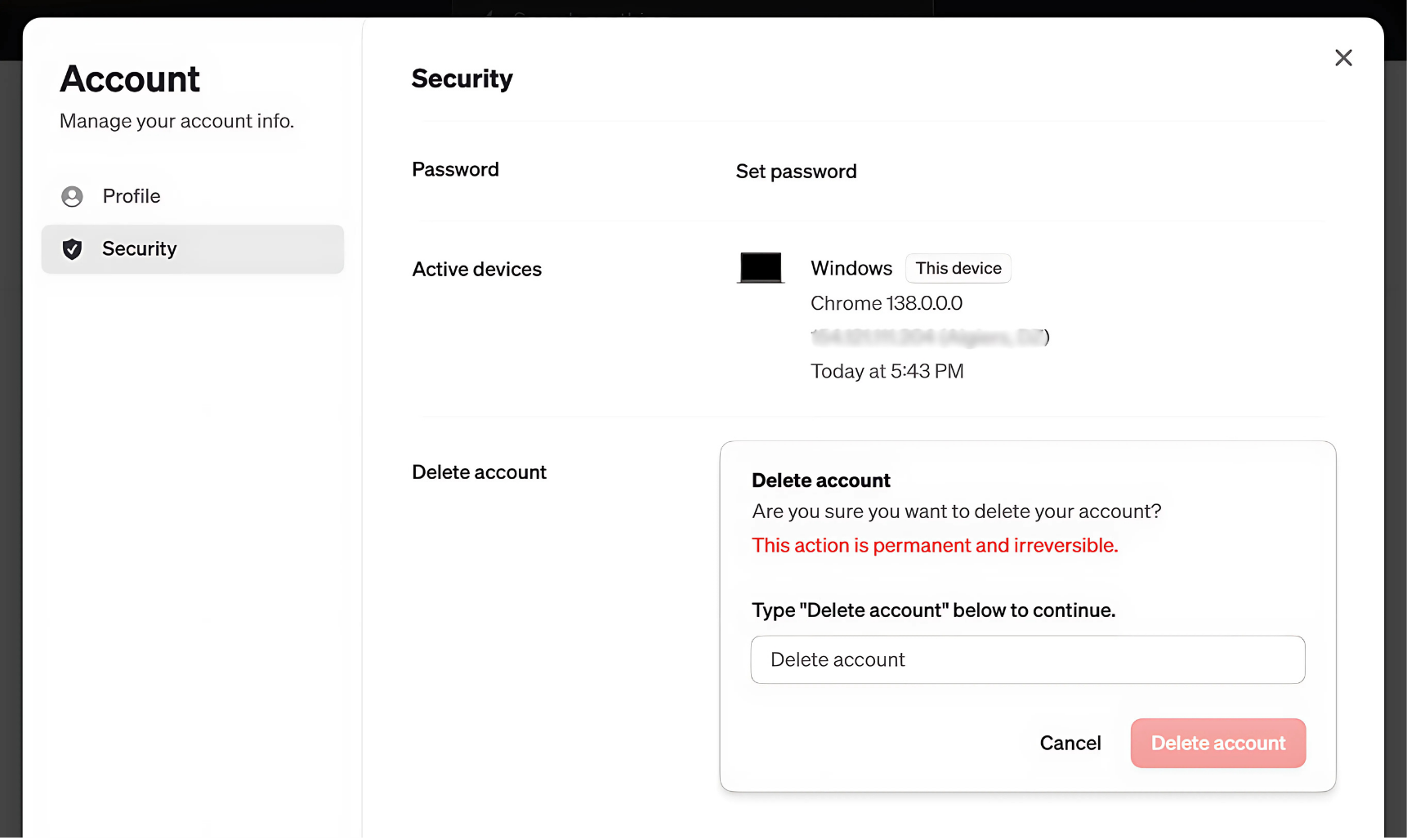
Once you click on the button, a confirmation message will appear asking you to confirm the deletion. Once confirmed, your account and data will be permanently removed.
Troubleshooting
Can’t find the Delete button:
Make sure you're logged into the correct account.
Check that you're under the Security tab, not General Settings.
Change your mind after deleting:
Unfortunately, once deleted, your account cannot be recovered. You’ll need to create a new one.
Still having trouble?
Email us at [email protected] with the meeting date and title so we can help.
Was this helpful?
Still need help? Ask the team