Exporting and Sharing Meeting Notes
Abacor provides a simple way to export your meeting notes as PDFs and share them with your team or others. Whether you need a PDF summary or want to share your meeting link, this guide walks you through the process.
Written By Delane Ly
Last updated 7 months ago
How to Export Meeting Notes as a PDF
Step 1: Navigate to the Desired Meeting
Open your Abacor dashboard and find the meeting you wish to export or share.
Click on the meeting to open it.
Step 2: Open the Meeting Summary
Once inside the meeting, you will see the Meeting Summary page.
Scroll down to find the Action Bar located at the bottom of the page.
Step 3: Click the "Export" Button
In the Action Bar, click the "Export" button.
A list of export formats will appear, but currently, the PDF option is available.

Step 4: Select PDF as the Export Format
Click on PDF to begin the export process.
Step 5: Choose What Information to Export
A preview window will appear, showing you what the PDF will look like.
You will have the option to select the following elements to include in the PDF:
Participants: List of attendees for the meeting.
Meeting Recap: A brief summary of the meeting.
Key Takeaways: Important highlights and points discussed.
Action Items: Tasks assigned or noted during the meeting.
Full Transcript: A detailed transcript of the meeting.
Select the information you would like to export.

Step 6: Export as PDF
Once you’ve selected the information to include, click Export as PDF.
The PDF will automatically download to your computer.

How to Share Meeting Notes
Step 1: Click the "Share" Button
In the top right of the note, click the "Share" button.
Step 2: Internal Access Sharing
A sharing settings window will appear where you can select how to share your meeting. Choose one of the following access levels:
Private — Only you can access the meeting.
Only internal people invited — Limited to individuals assigned to the contact, invited members, and attendees.
Everyone in the workspace — Anyone in your firm's workspace with an Abacor account can access the meeting.
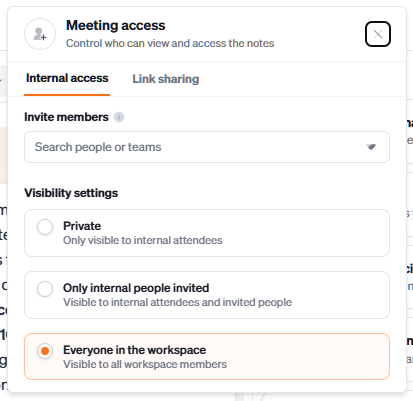
Internal access
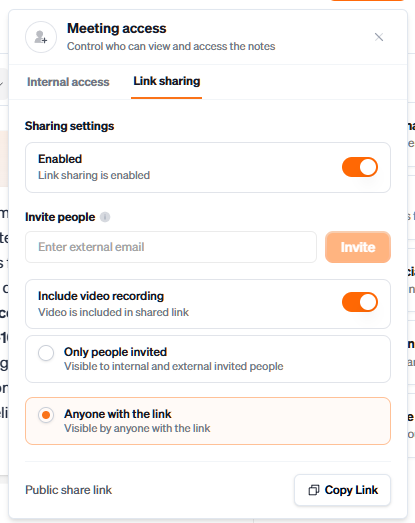
Step 3: Link Sharing
Select the Link Sharing tab to invite others to view a read-only version of the meeting notes. You can configure two settings:
Include video recording — Toggle this on to include the video recording alongside the notes.
Access level — Choose who can view the link:
Only people invited — Limited to invited individuals and attendees.
Anyone with the link — Anyone who has the link can view the notes.
Troubleshooting
PDF Not Downloading: If the PDF doesn’t automatically download, check your browser's download settings or try using a different browser.
Link Not Working: If the meeting link is not accessible, verify that the correct sharing settings were applied. Ensure the link was copied correctly.
Missing Information in PDF: If the exported PDF is missing certain details (like action items or participants), make sure you selected those items in the preview window before exporting.
Was this helpful?
Still need help? Ask the team