Connecting to Anchor
Abacor integrates with Anchor. Once connected, you can draft proposals directly on Abacor using the meeting context.
Written By Yingzhong Xu
Last updated 5 months ago
Step 1: Find Anchor within Abacor
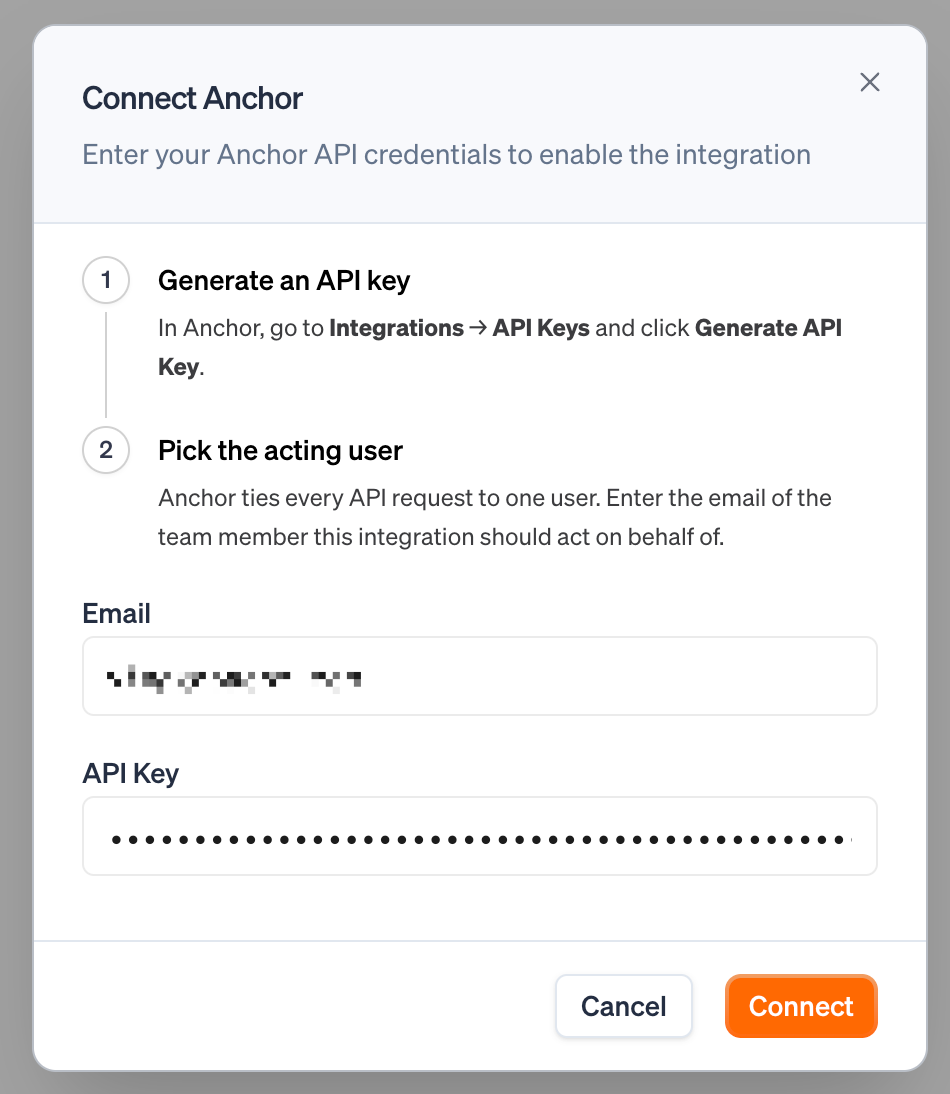
Go to Settings → Integrations → Billing & Invoicing, enter your Anchor API credentials to enable the integration.
2. Generate an API key
In Anchor, go to Integrations → API Keys and click Generate API Key.
3. Pick the acting user
Anchor ties every API request to one user. Enter the email of your Anchor account.
FAQ
What does Abacor sync with Anchor?
Abacor syncs your AI-generated notes, transcripts, and recordings to client timelines in Anchor, along with contacts and client groups to keep your client hub consistent. It also syncs your service catalog so the services you offer stay aligned across both platforms.
Will syncing affect my billing or invoices in Anchor?
No. The integration syncs notes, contacts, and your service catalog for reference and record-keeping. It does not create, modify, or send invoices on your behalf.
Troubleshooting
Authorization fails? Make sure you're logged into the correct Anchor account and have the necessary permissions.
Integration not syncing? Disconnect and reconnect from Settings > Integrations > Abacor.
Service catalog not appearing? Confirm your services are published and active in Anchor, then trigger a manual sync.
Contacts missing after sync? Verify the contacts exist in Anchor and that your account has permission to view them.
Still having trouble? Email us at [email protected] with the meeting date and title so we can help.
Was this helpful?
Still need help? Ask the team