Connect Abacor to Claude
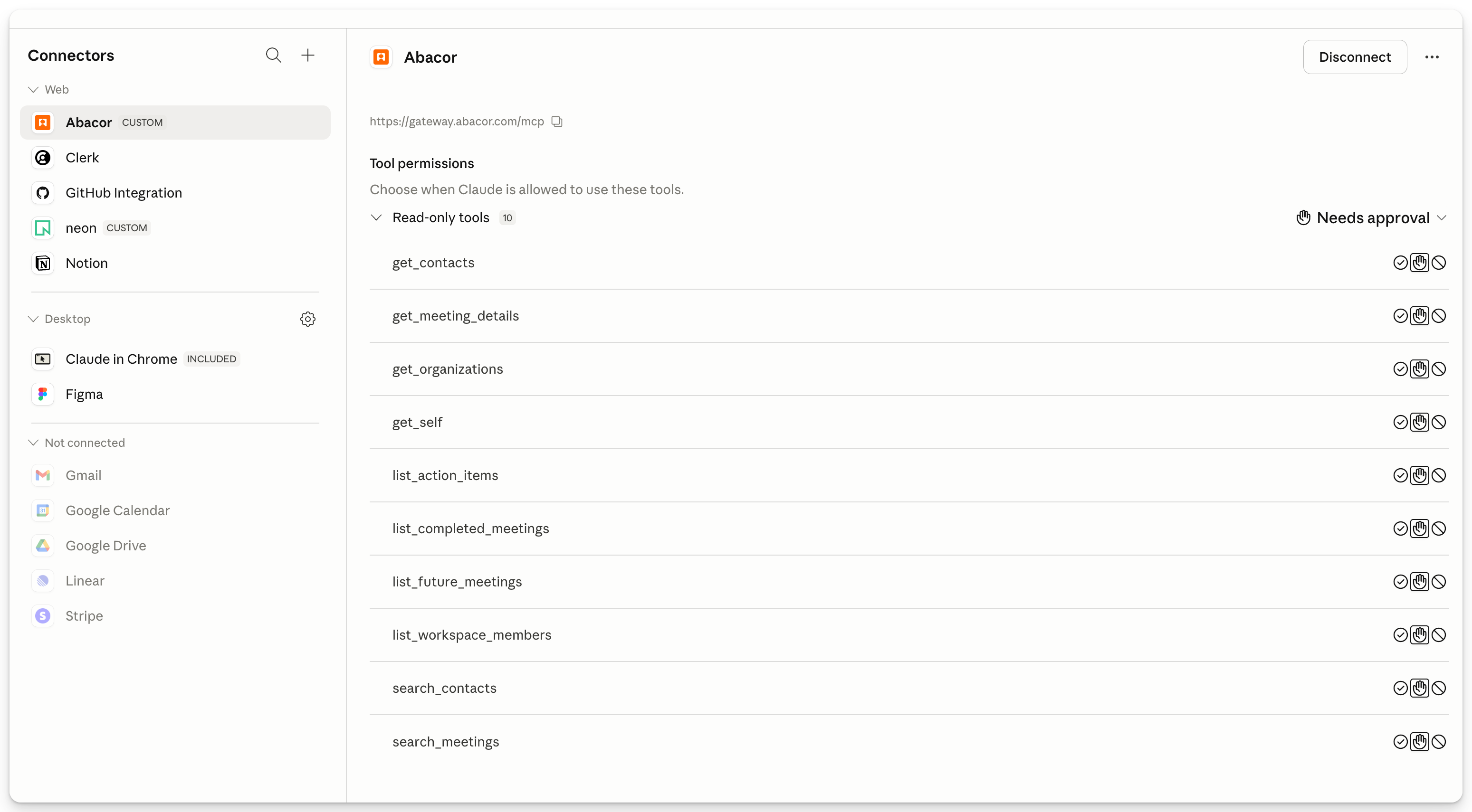
Connecting Abacor to Claude lets Claude access your meetings, notes, and contacts so you can ask questions and get answers without leaving your conversation.
Written By Yingzhong Xu
Last updated 5 months ago
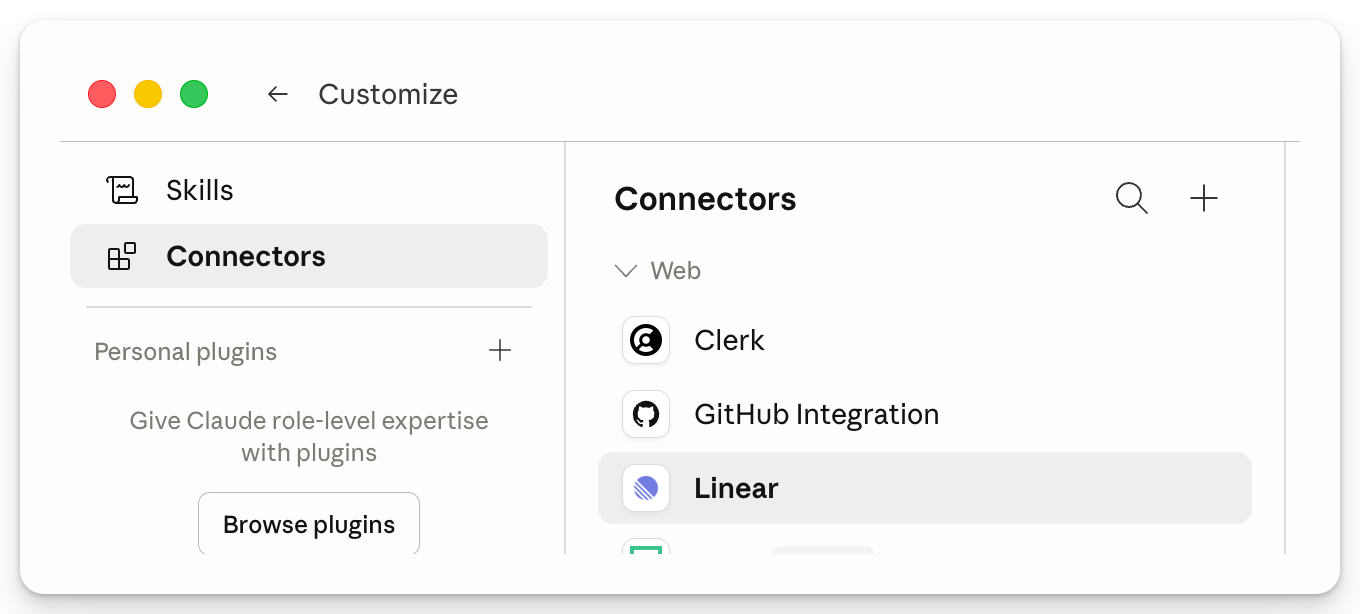
Step 1: Open Connectors Setting
Open Claude Desktop/web. Click the Customize menu in the top-left corner of your screen and select Connectors.
Step 2: Add a New Integration
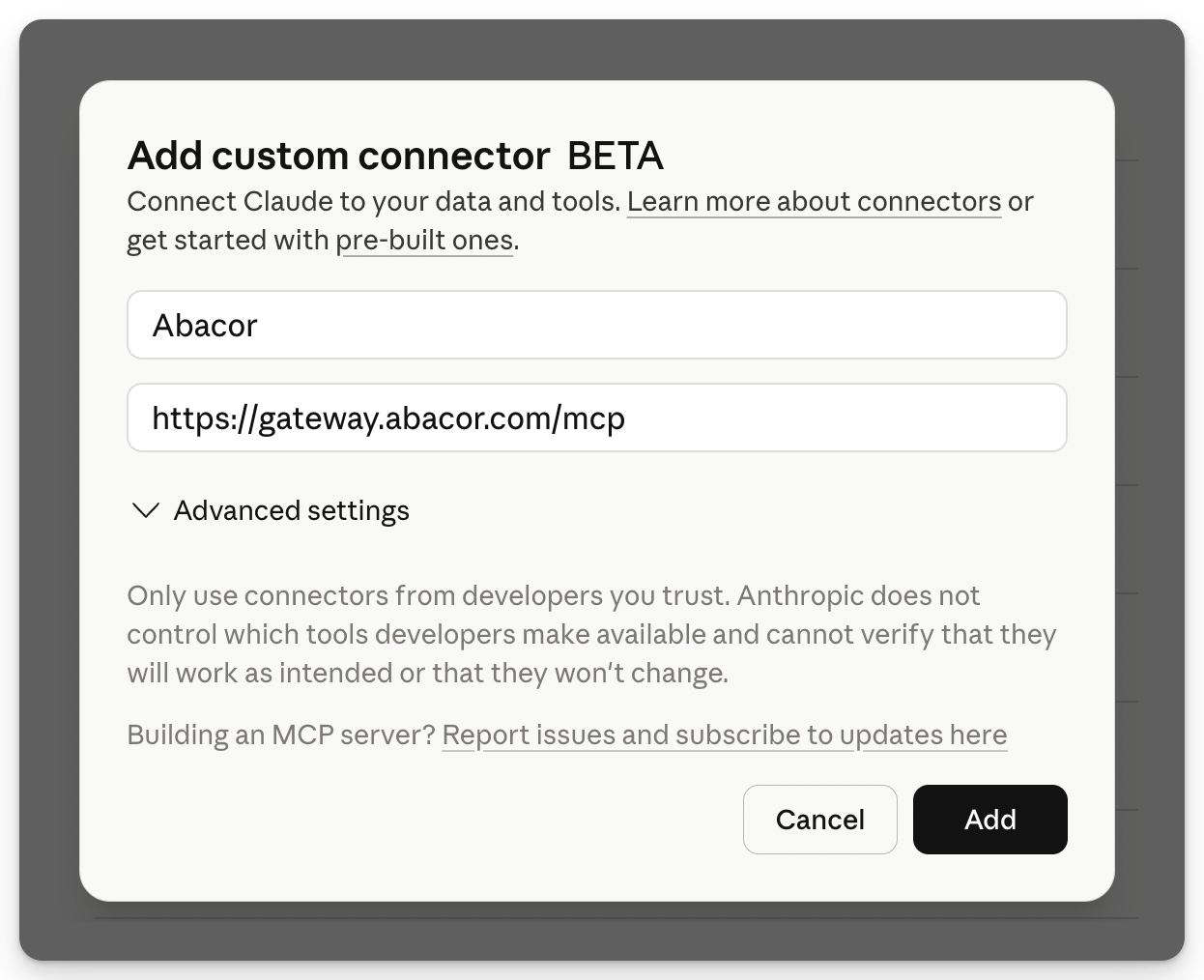
Click Plus button then Add custom connector. When prompted, enter the following URL:
https://gateway.abacor.com/mcpGive it the name Abacor and click Save.
Step 3: Sign In to Abacor
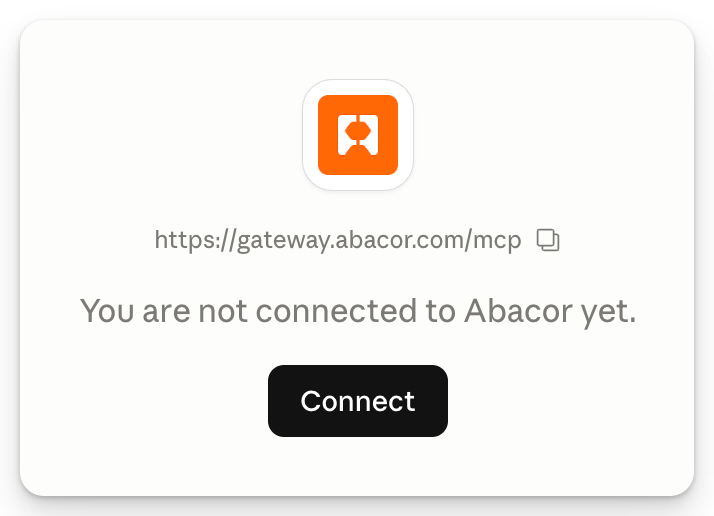
After saving, click on Connect. Claude will open a sign-in window. Once signed in, you'll be returned to Claude automatically.
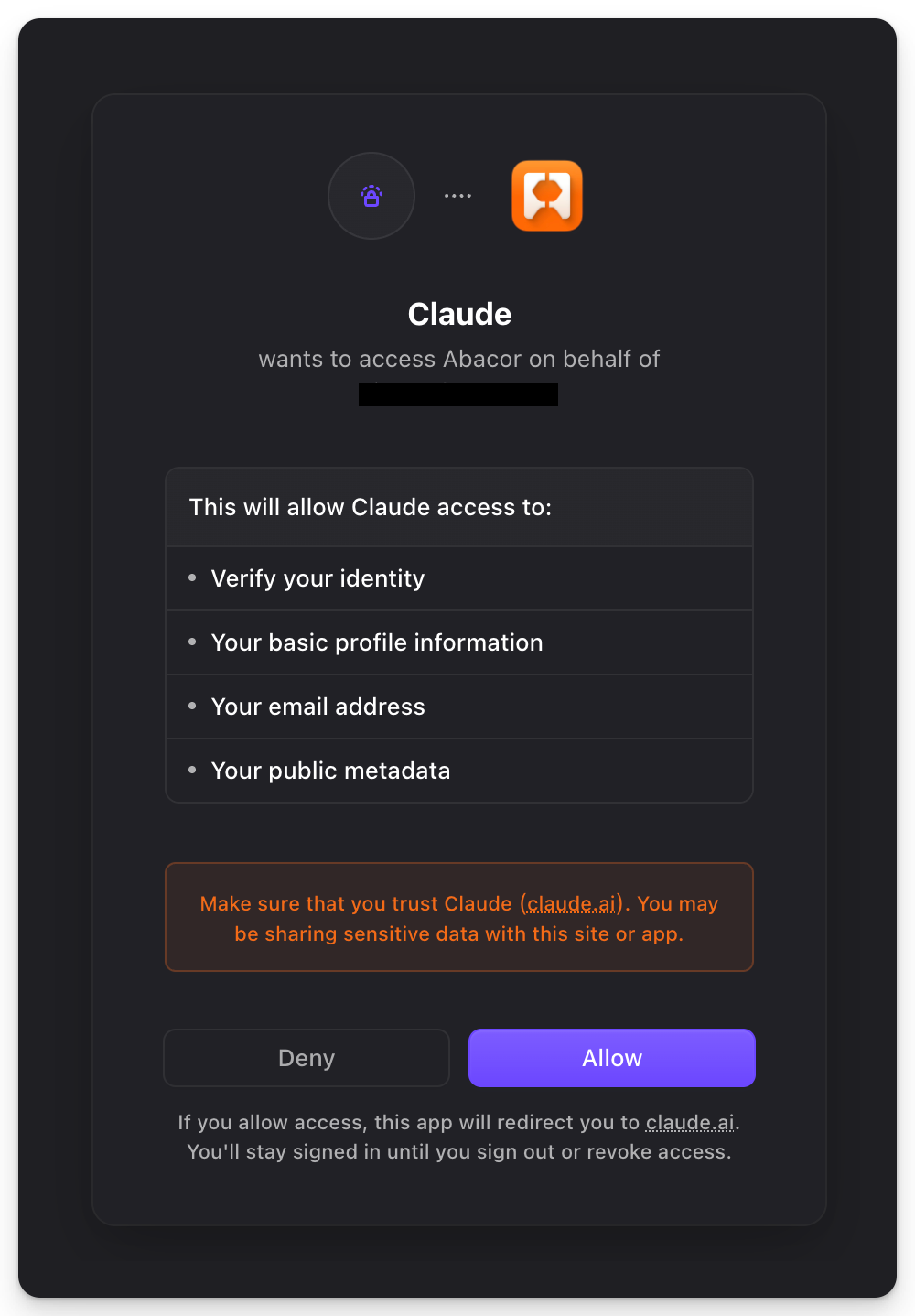
Step 4: You're Connected
Start a new conversation in Claude and try asking something like "What are my upcoming meetings?" Claude will now have access to your Abacor data.
FAQ
What is the Abacor MCP connection for Claude?
The Abacor MCP (Model Context Protocol) connection lets Claude securely access your Abacor workspace so you can ask questions about your meetings, notes, transcripts, contacts, and action items directly in a Claude conversation.
What can I do with Abacor in Claude?
Once connected, you can ask Claude to summarize recent meetings, search across notes and transcripts, pull up contact or organization details, list upcoming or past meetings, and review action items — all using natural language.
Does Claude have access to all of my Abacor data?
Claude only accesses the data your Abacor account has permission to see. Workspace permissions, sharing settings, and role-based access in Abacor continue to apply.
Is my Abacor data stored by Claude?
No. Claude retrieves information from Abacor only when you ask a question that requires it. Data isn't copied into Claude's long-term storage, and Anthropic doesn't train on your Abacor content.
How often is the data Claude sees updated?
Claude pulls live data from Abacor at the moment you ask, so responses reflect what's currently in your workspace — no manual sync needed.
Which Claude plans support the Abacor connector?
The Abacor MCP connector works with Claude Pro, Max, Team, and Enterprise plans. Custom connectors require a paid plan.
Can I disconnect Abacor from Claude?
Yes. Go to Settings > Connectors in Claude, find Abacor, and select Disconnect. You can reconnect anytime.
Troubleshooting
Connector not showing up? Make sure you're on a paid Claude plan and that custom connectors are enabled in Settings > Connectors.
Authorization fails? Confirm you're logged into the correct Abacor account in the same browser, then retry. If you have multiple Abacor workspaces, double-check you're approving access for the intended one.
Claude says it can't find a meeting or contact? Verify the item exists in Abacor and that your account has permission to view it. Try rephrasing with a more specific date, title, or name.
Tools not appearing in the conversation? Refresh the chat or start a new conversation. If Abacor tools still don't appear, disconnect and reconnect from Settings > Connectors.
Getting authentication errors mid-conversation? Your session may have expired. Reconnect Abacor from Settings > Connectors to refresh your credentials.
Still having trouble? Email us at [email protected] with a description of the issue and, if relevant, the meeting date and title so we can help.
Was this helpful?
Still need help? Ask the team