Sharing Meetings with Teams
You can now choose to include the meeting video when sharing your notes and transcript with your team. This gives recipients the option to watch the full conversation along with reading the key points.
Written By Delane Ly
Last updated 6 months ago
Step 1: Navigate to Meeting Note
After your meeting ends, go to the meeting details page. At the top, you will see access.
Step 2: Select “Access”
Click the Access button to open the sharing settings.

Step 3: Select individuals and teams
In the sharing settings, select the individuals and teams you would like to grant access to the notes.
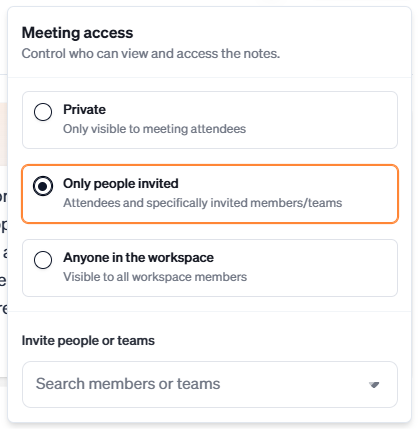
Step 4: Send the Share Link
Once settings are selected, recipients will automatically gain access to the notes.
Troubleshooting
Access Button Not Visible:
Make sure the meeting has finished processing and that you have permission to manage sharing settings for the meeting.Cannot Select Individuals or Teams:
Confirm that the users or teams have been added to your organization. Only existing members and teams can be granted access.Recipients Cannot View Notes:
Verify that the correct individuals or teams were selected and that access was saved successfully. Ask recipients to refresh the page or reopen the link.Share Link Not Working:
Ensure the link has not been revoked or restricted. Check that the access level allows viewing for the intended recipients.Missing Team in Access List:
Make sure the team has been created in Team Management and has active members assigned.Still Having Issues:
Click the chat bubble in the bottom-right corner to contact support for help with sharing or permissions.
Still having trouble?
Email us at [email protected] with the meeting date and title so we can help.
Was this helpful?
Still need help? Ask the team